
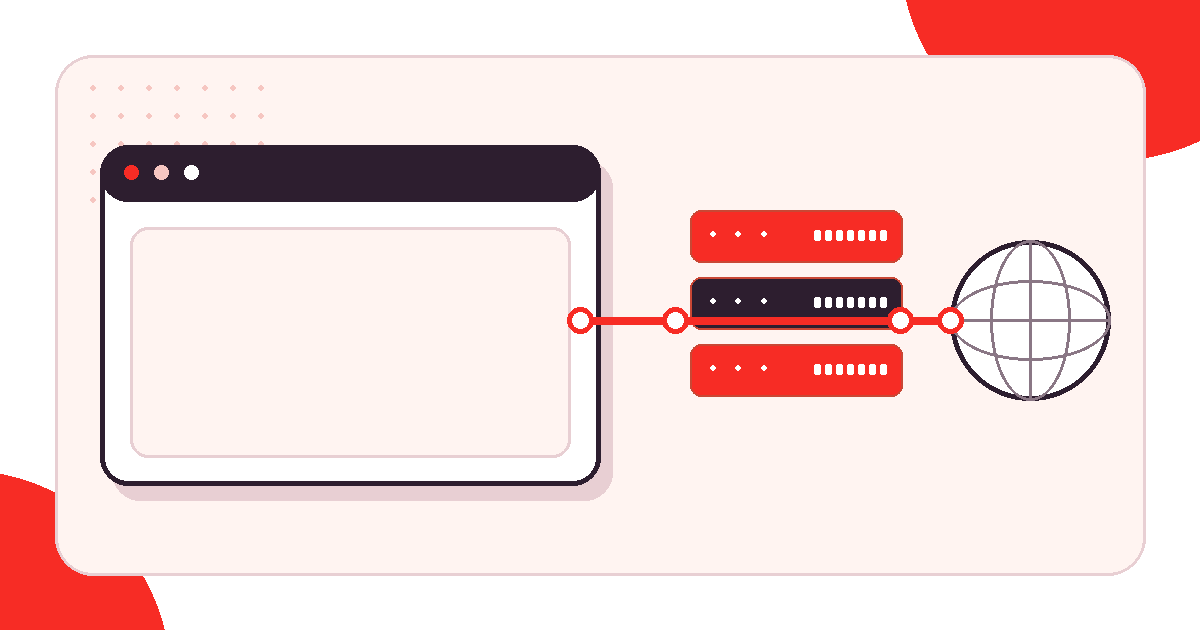
What is a proxy browser?
A proxy browser is a browser session whose supported network traffic is routed through a proxy server. Chrome usually follows operating-system or managed proxy settings, while Firefox can use its own connection settings. Extensions may switch browser proxy policies, but they require careful permission review. After configuration, verify the observed exit address and confirm which traffic is actually proxied.
The phrase can also refer to a website that loads other pages for you. That is a web proxy, not a normally configured browser. This guide focuses on regular browsers using HTTP, HTTPS, or SOCKS endpoints because that preserves destination URLs and standard browser behavior. Start with what a proxy server is; if you mean a browser-based relay website, compare what a proxy site means with the proxy sites safety guide.
Decide which layer owns the proxy setting
A reliable setup has one clear owner. The operating system can provide a proxy policy used by several applications. Firefox can override that policy inside its own settings. A browser extension can ask Chrome or Firefox to change supported proxy preferences. Corporate devices may receive locked policies from an administrator. Competing layers are a common reason that a proxy appears enabled but traffic takes an unexpected route.
Before changing anything, record the current state and close sensitive tabs. Use a clean browser profile without saved accounts for the first test. Keep the proxy hostname, port, protocol, and authentication method available, but do not paste credentials into screenshots or shared notes.
Browser proxy settings checklist
- Identify whether the operating system, browser, extension, or managed policy owns the proxy setting.
- Confirm the proxy protocol, hostname, port, and authentication method supplied for the endpoint.
- Configure one ownership layer and remove competing settings before testing.
- Open a clean browser profile and verify the observed exit IP and country.
- Check DNS, WebRTC, bypass rules, and application traffic separately when the workflow depends on them.
Configure Chrome through system settings
On Windows, Chrome opens the operating-system proxy panel. A manual HTTP proxy normally requires a host and port, plus a bypass list when local or internal destinations must stay direct. On macOS, the active network service contains separate web, secure web, and SOCKS fields. Changes can affect other applications that respect system settings, not only the current Chrome profile.
- For a manual HTTP proxy on Windows, open Settings > Network & internet > Proxy.
- Under Manual proxy setup, open Set up beside Use a proxy server, then enable it.
- Enter the supplied hostname or IP address and port in their separate fields. Keep the bypass list limited to the destinations your setup requires.
- Save, open a fresh Chrome tab, and compare the observed exit in the Mexela Proxy Checker with your direct baseline.
- After the test, restore the settings you recorded before making the change and repeat the direct check.
These steps follow Microsoft’s Windows proxy setup documentation. A PAC script or managed policy needs its own configuration; do not replace it with manual settings on an administered device. For macOS and other setup paths, use the browser and operating-system proxy setup guide.
Managed Chrome installations can receive proxy policies that users cannot override. Google documents policy options through the Chrome Enterprise policy reference. If a work device resets your configuration, contact the administrator instead of repeatedly installing extensions or editing unrelated settings.
Configure Firefox with browser-specific controls
Firefox can use its own proxy independently of the operating system. Open Firefox Settings and search for proxy, then open Configure proxy. Depending on the Firefox version, this is under Privacy and security > Advanced settings > Proxy settings, or General > Network Settings in older releases. It can follow the system, load a PAC URL, detect settings, or accept manual proxy values.
- Record the current Connection Settings, then select Manual proxy configuration.
- For an HTTP endpoint, enter the host and port in HTTP Proxy. Use the same proxy for HTTPS only if the endpoint supports HTTPS tunneling.
- For a SOCKS endpoint, use SOCKS Host and select the supplied SOCKS version. Review the SOCKS DNS option separately when available.
- Review No Proxy For: matching destinations bypass the proxy.
- Save, open a fresh tab, and verify the exit with the Proxy Checker. Restore the original connection mode after the test.
Mozilla’s Firefox connection-settings documentation describes the current interface. Use the proxy protocol supplied by the provider; placing a SOCKS endpoint in an HTTP field will not convert it. Save the settings, open a fresh tab, and verify the exit before visiting the real destination.
If the Firefox proxy controls have moved after an update, search Settings for proxy and use Mozilla’s version-specific route to Connection Settings. Confirm whether the selected mode is manual or system-managed before comparing the browser result.
Understand proxy authentication prompts
An authenticated HTTP proxy may trigger a browser dialog asking for a username and password. That dialog belongs to the proxy boundary. An HTTP 407 response means the proxy rejected or did not receive valid authentication. A website login form or destination 401 is a different boundary and uses different credentials.
Some browsers and extensions handle proxy credentials differently, especially in private windows or after startup. Never install an unknown extension only to suppress a password prompt. Check the endpoint format, remove accidental spaces, confirm the public IP if allowlisting is used, and follow the proxy authentication tutorial.
Review extensions before letting them control traffic
A proxy-switching extension can make profiles and endpoint changes convenient. It may request permission to change proxy settings, read tabs, store configuration, or observe navigation. Install only from a trusted publisher, read the permission list, check update history, and remove extensions that are no longer needed. Do not store production credentials in an extension with unclear security practices.
An extension does not automatically make browser fingerprints, cookies, accounts, language, and timezone match the proxy location. It also may not proxy browser update traffic, native messaging hosts, other applications, or DNS in the way you expect. Treat it as a configuration tool, not an anonymity guarantee.
Verify the browser route before logging in
- Open a new clean profile and close existing account sessions.
- Configure one proxy endpoint with the correct protocol.
- Open the first-party Proxy Checker and record the IP observed for that request.
- Compare the result with a direct baseline.
- Check DNS and WebRTC behavior if privacy is part of the requirement.
- Open one harmless public page at the intended destination.
- Only then decide whether an account login is appropriate.
The checker proves that one browser request reached one server through a particular exit. It does not prove that every browser feature or application follows that route. The proxy verification guide explains how to separate exit-IP evidence from DNS, certificate, and application checks.
Know what remains outside the browser proxy
Email applications, operating-system updates, games, command-line tools, and background services can remain direct unless they use the same system policy. A browser proxy also does not create a device-wide encrypted tunnel. If the requirement is to route an entire device, compare technologies by routing scope and threat model rather than assuming a browser setting covers everything.
Inside the browser, WebRTC can create peer connections with network behavior that differs from ordinary HTTP requests. DNS may be local or remote depending on browser, protocol, and settings. Review the DNS and WebRTC leak guide when hiding the ordinary public IP is part of an authorized privacy test.
Chrome and Firefox proxy authentication: our controlled browser lab
On 1 October 2026, we ran Google Chrome 154.0.8037.58 and Firefox 153.0 (the official Playwright test build) against a disposable local HTTP destination and a local authenticated forward proxy. Each browser completed three repetitions in fresh, isolated headless processes: direct access, proxy access without authentication, then authenticated proxy access. Playwright 1.62.1 supplied browser-scoped proxy options; we did not change operating-system settings or use a saved customer profile.
| Configuration | Google Chrome | Firefox test build | Destination observation |
|---|---|---|---|
| Direct browser request | HTTP 200, no proxy request | HTTP 200, no proxy request | One direct request |
| Proxy configured, authentication omitted | Proxy returned 407; navigation reported ERR_INVALID_AUTH_CREDENTIALS | Proxy returned 407; navigation reported NS_ERROR_PROXY_CONNECTION_REFUSED | No request reached the destination |
| Proxy configured, disposable authentication supplied | 407 challenge, then HTTP 200 through the proxy | 407 challenge, then HTTP 200 through the proxy | One authenticated-proxy request; Proxy-Authorization was not forwarded to the destination |
The error labels differed, but the proxy logs confirmed the same missing-authentication result. In this fixture Firefox made two unauthenticated attempts; Chrome made one attempt. A browser error alone would not prove the route: we checked both proxy-side responses and destination-side request records for the matching path.
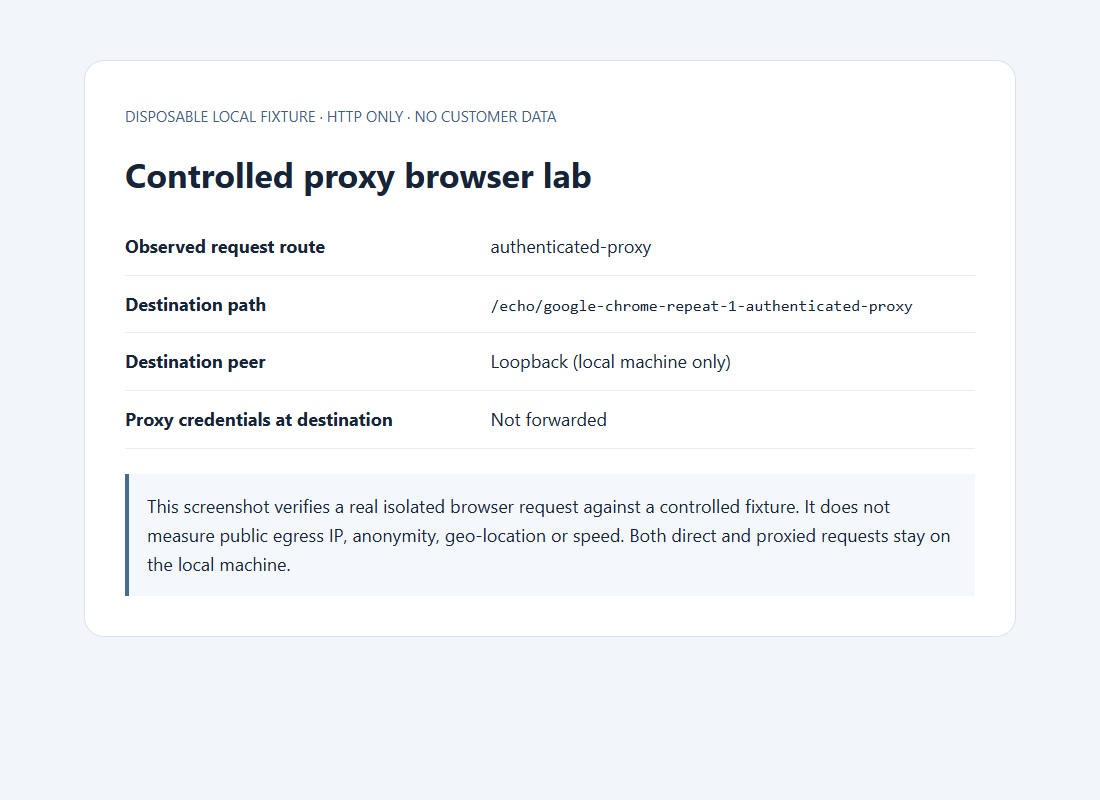
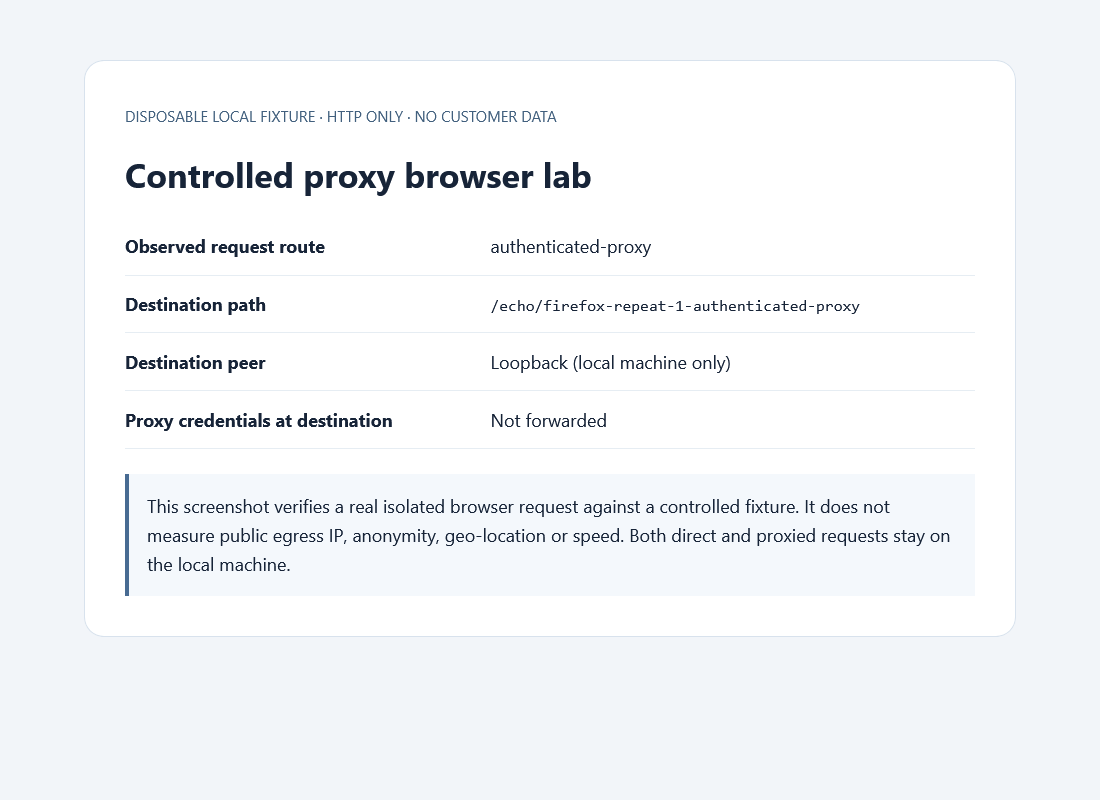
Limits: both the direct and proxied destination connections remained on the local machine. These observations do not demonstrate a changed public IP, provider speed, geographic accuracy or anonymity. This HTTP-only lab did not test HTTPS CONNECT, SOCKS, DNS or WebRTC leaks, manual settings screens or native login dialogs. To validate a real endpoint, configure the correct protocol and authentication in a clean browser session, then check the destination-observed public address separately. Do not publish credentials in screenshots or share proxy URLs containing usernames and passwords.
Observed HTTPS CONNECT and SOCKS5 browser routes
On 1 October 2026 we extended the controlled lab to a local HTTPS destination. Google Chrome 154.0.8037.58 and the official Playwright Firefox test build 153.0 each completed three separate repetitions, using fresh headless processes for all four phases below. The destination and both proxy fixtures listened only on loopback, accepted one fixed destination, and never relayed a public website. These are protocol observations, not a test of a Mexela customer endpoint or a speed benchmark.
| Phase | Observed in Chrome and Firefox | Destination evidence |
|---|---|---|
| Direct HTTPS baseline | 200 response in 3/3 repetitions per browser | Direct socket route and TLS 1.3 |
| HTTP CONNECT without proxy authentication | 407 challenges in every repetition | No upstream socket opened and no destination request |
| Authenticated HTTP CONNECT | 200 response in 3/3 repetitions per browser | CONNECT socket route, TLS 1.3, no Proxy-Authorization header at the destination |
| SOCKS5, NO AUTH method only | 200 response in 3/3 repetitions per browser | SOCKS socket route and TLS 1.3; username/password SOCKS authentication was not tested |
We matched the proxy’s actual upstream TCP source port to the destination’s TLS socket, then compared the destination observation with what the browser rendered. Both browsers forwarded the fixture hostname in CONNECT requests and in SOCKS5 address type 3. That demonstrates hostname forwarding for these exact requests, not absence of DNS resolver leakage. The installed Playwright runtime adds Chromium SOCKS resolver rules, so this is not a stock-browser default DNS test.
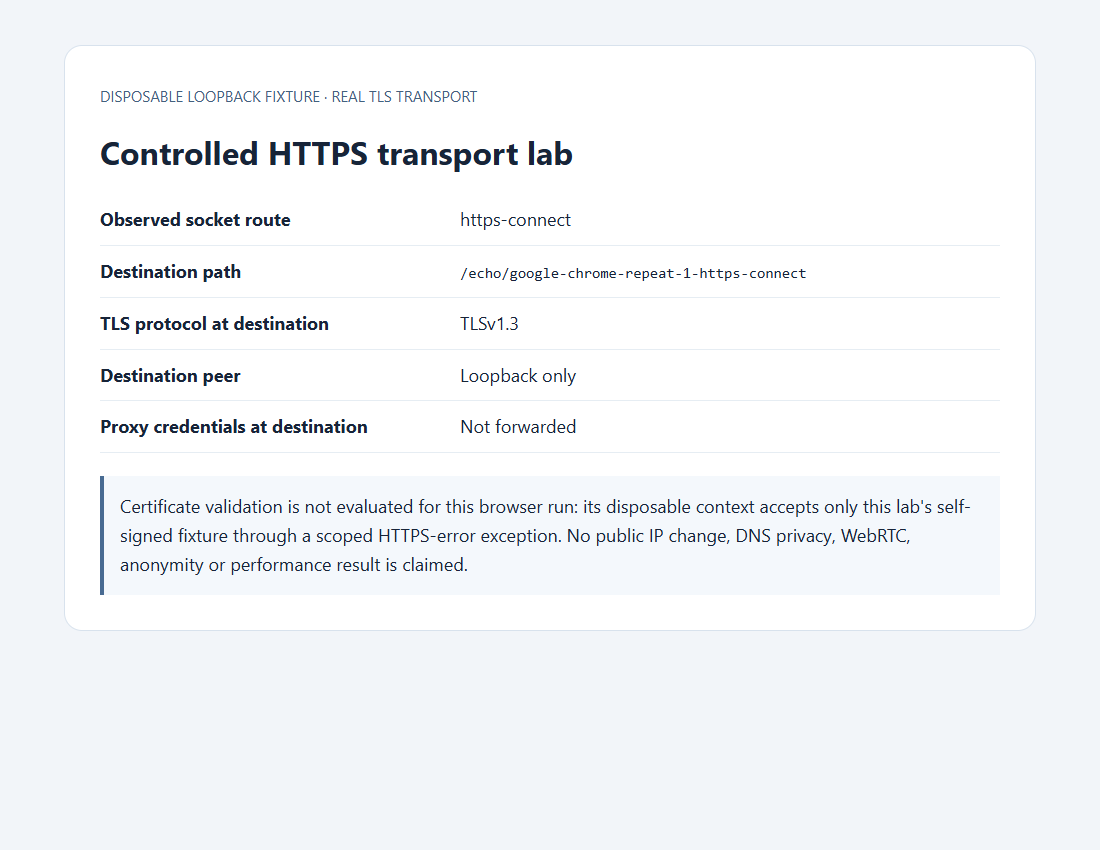
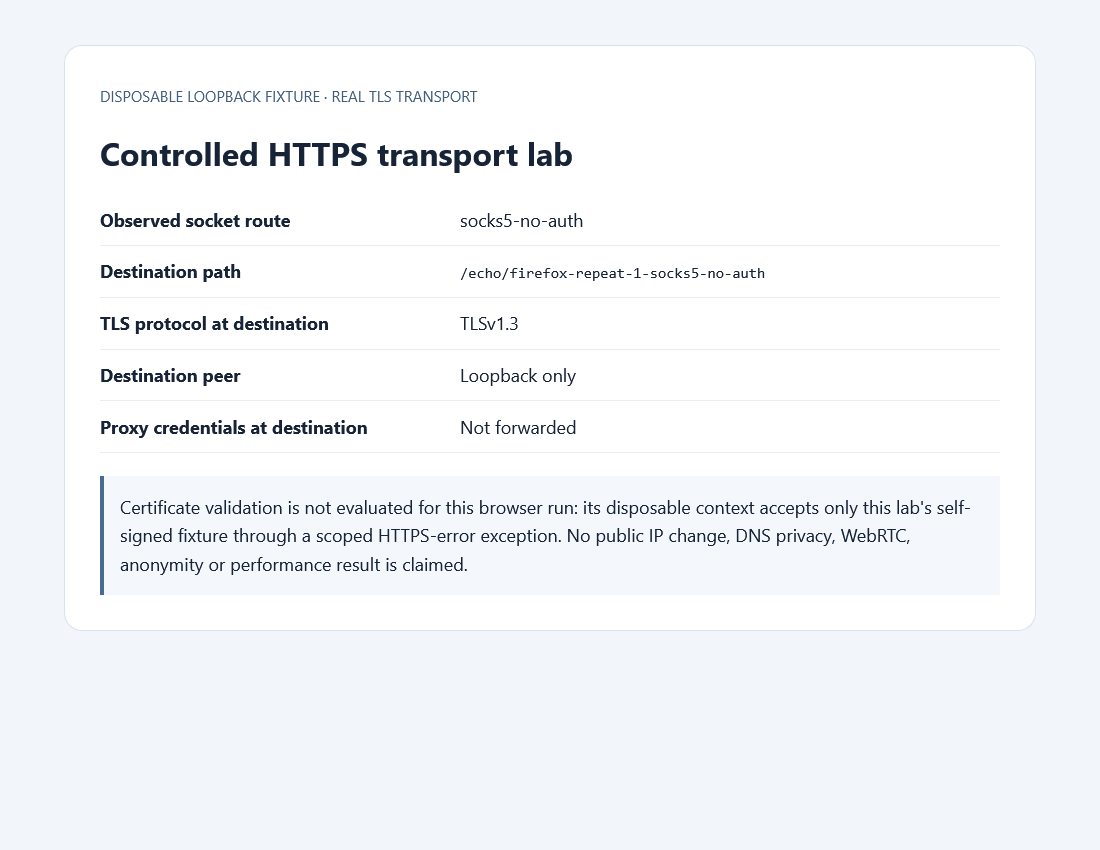
Certificate and privacy limits: the browsers used a certificate-error exception only inside disposable contexts for the self-signed local fixture, so browser certificate validation was not evaluated. A separate strict Node TLS check rejected the untrusted fixture certificate, succeeded with its explicit disposable CA, and rejected a hostname mismatch. Do not bypass certificate warnings or alter trust settings for a real proxy. WebRTC was not measured: page-request interception does not contain ICE UDP or mDNS traffic, and we did not start STUN, TURN or peer-connection tests. No public-IP change, anonymity, geolocation, DNS/WebRTC leak prevention, provider performance or manual-browser-settings result is claimed.
Troubleshoot by symptom
| Symptom | Likely cause | First check |
|---|---|---|
| No pages load | Wrong host, port, protocol, or firewall | Reach the proxy listener and confirm the scheme |
| 407 response | Proxy authentication | Credentials or source-IP allowlist |
| Certificate warning | TLS interception or wrong destination | Stop and inspect the certificate chain |
| Correct IP, wrong content | Cookies, account, language, or geolocation | Clean profile and direct comparison |
| Browser works, app fails | Different proxy ownership | Configure and test the application separately |
Do not disable certificate verification to remove a warning. Do not rotate through many endpoints when one destination refuses a request; that can hide the real error. The common proxy errors guide provides a layered sequence for DNS, timeout, connection, and authentication failures.
Choose the endpoint for the browsing session
For a login session, a stable private endpoint is normally easier to explain and reproduce than a rapidly rotating pool. For regional public-page quality assurance, select the required country and keep account state separate from the location test. When France is the target, use the France proxy verification guide to separate route, database, browser-state, and destination evidence. For a short non-sensitive comparison, one clean profile and one endpoint are enough.
Check available locations and current plans on the proxy pricing page. Start with the smallest suitable quantity, test normal browsing and the real authorized destination, and keep a short record of browser version, profile, endpoint, time, and result.
Frequently asked questions
Does Chrome have its own proxy setting?
Chrome generally opens or follows operating-system proxy settings, unless an extension or managed enterprise policy controls the browser proxy configuration.
Can Firefox use a different proxy from Windows?
Yes. Firefox can use manual browser-specific settings, the system policy, a PAC URL, or automatic detection.
Will a browser proxy affect every application?
No. Browser-specific settings normally affect that browser. System settings may affect several compatible applications, while others keep their own networking configuration.
Can a browser use SOCKS5?
Firefox supports manual SOCKS settings. Other browsers may rely on system configuration, extensions, or launch policies. Verify DNS behavior and client support.
Why is my real IP still visible?
The request may bypass the proxy, another browser feature may use a different path, or the checker may be reading account or cached data. Test a clean profile and inspect routing layer by layer.
Bottom line: a proxy browser is a normal browser with an explicit routing policy. Choose one configuration owner, protect credentials, verify the exit before logging in, and remember that applications and browser features outside that policy may remain direct.
Can a browser profile isolate proxy routing by itself?
A profile separates browser state, but it does not automatically create a separate upstream route. Check whether proxy configuration belongs to the browser process, operating system, policy or an extension. Verify each intended profile independently. Cookie isolation and routing isolation are separate requirements, especially when several profiles run on one computer.
For the related implementation or diagnosis, identify the desktop configuration owner.
Choose the next browser diagnostic from the observed symptom
If the intended application route is unclear, follow the direct-versus-proxy verification procedure. If the gateway challenges for credentials, use the authentication evidence checklist. If the route works but you are choosing an assignment model, compare sharing and address continuity separately. These checks answer different questions; keep the browser session and destination result separate from the endpoint’s assignment terms.