
To set up a proxy, first record its protocol, host, port, and authentication method, then place those values in either the browser’s own network settings or the operating-system proxy panel it uses. Chrome normally follows system settings; Firefox can keep a separate browser-only configuration. Verify the route before using accounts or important data.
Scope: these are interactive browser and desktop steps, not code-library configuration. Developers should use the examples linked from the Proxy Setup and Developer Guides hub; troubleshooting begins with the layered proxy test.
Chrome: open the operating-system proxy panel
In Chrome, open Settings, search for proxy, and choose the control that opens the computer’s proxy settings. Enter only the endpoint values supplied for the intended protocol. Because Chrome delegates to the operating system in ordinary desktop setups, the change may affect other applications that also honor system settings.
Managed Chrome installations can apply policies, command-line options, or extensions that override local choices. Chromium’s official proxy configuration notes explain precedence and bypass behavior. If the direct address remains visible, check policy and the active browser profile.
Firefox: choose a browser-specific connection mode
Open Settings, search for network settings, and open Connection Settings. Choose manual proxy configuration only when you want Firefox to use values different from the operating system. Enter the correct host and port for HTTP, HTTPS, or SOCKS, and decide whether the same proxy should cover multiple protocols based on the provider’s documentation.
Mozilla’s Firefox connection-settings guide documents the available modes. SOCKS DNS behavior and bypass lists deserve explicit review; an overly broad no-proxy entry can silently send a destination directly.
Finding the dialog: Firefox menu labels vary by version. Older layouts place Network Settings under General; newer layouts use Privacy and security, Connection and software security, Advanced settings, then Proxy settings and Configure proxy. Search Settings for proxy if the labels differ, and follow Mozilla’s current instructions for your installed version.
Windows: configure automatic or manual settings
Open Settings, Network and internet, then Proxy. Use either the organization’s automatic setup script or a manual server and port as instructed; do not combine modes without understanding precedence. Review exceptions carefully and save the configuration before opening a fresh browser connection.
Microsoft’s proxy settings documentation describes both modes. A system proxy is not necessarily universal: applications may ignore it or implement their own network stack.
macOS: configure the active network service
Open System Settings, select Network, choose the active service, open its details, and find Proxies. Enable only the protocol entries the endpoint supports, enter server and port values, and review hosts that should bypass the proxy. Settings belong to the selected network service, so switching from Wi-Fi to another interface can change behavior.
Apple’s macOS proxy settings guide documents automatic discovery, PAC files, HTTP, HTTPS, SOCKS, and bypass fields. Apply the change, close existing connections, and use a fresh browser window for testing. If a managed profile controls the Mac, local fields may be locked or overwritten; the administrator’s policy is the source of truth.
Authentication: protect credentials and allowlists
Username and password authentication suits laptops and changing networks. Enter secrets only in trusted browser, system, or password-manager prompts. Do not paste authenticated proxy URLs into screenshots, shared notes, or shell history. Source-IP authentication suits stable server egress but fails when the public client address changes.
A 407 response means the proxy requires or rejected authentication, not that the destination account password is wrong. Use the authentication guide to check the chosen method and rotate any exposed credential.
Safety limits: proxy routing does not authorize access, erase browser identity, or protect plain HTTP content. Keep TLS validation enabled, respect destination rate limits and terms, and avoid saving secrets on shared devices.
Verification: confirm what each client actually routes
- Record the direct public address from the intended browser and profile.
- Apply the proxy settings and open a fresh connection.
- Confirm the expected exit address and country.
- Request an HTTPS page and stop on any certificate warning.
- Review DNS, WebRTC, and bypass behavior when privacy testing requires it.
- Perform one authorized destination action at a conservative rate.
Expected observation: the proxied browser reports the assigned exit while the direct baseline remains different. If only one browser changes, that may be correct for Firefox manual settings; if no application changes, recheck protocol, policy, active network service, and exclusions.
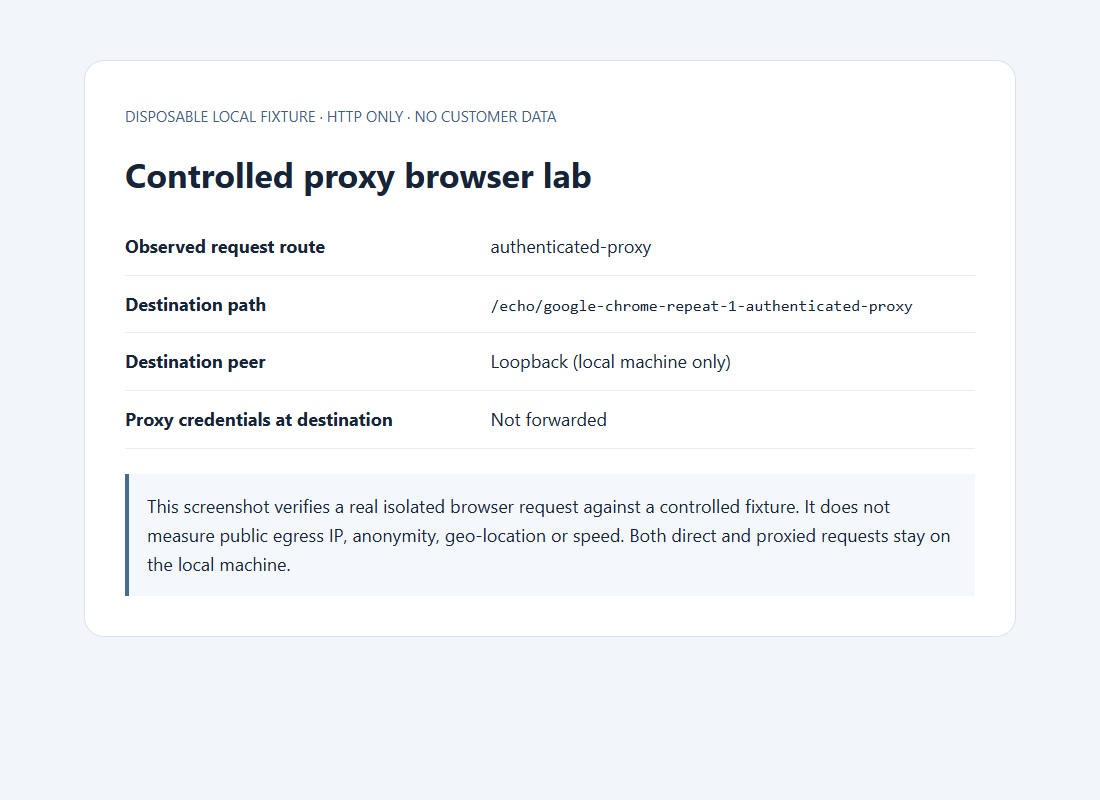
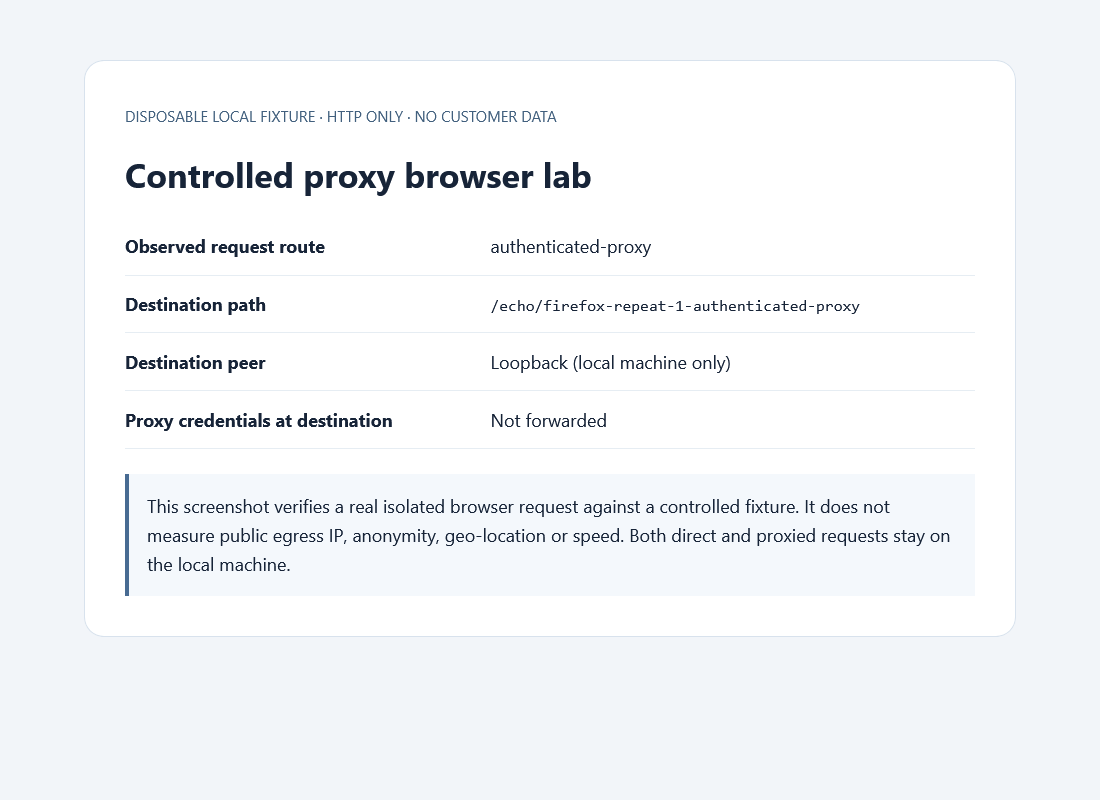
Obtain an endpoint only after choosing the configuration scope
Decide whether the endpoint must serve one browser profile or multiple system-aware applications, then define protocol, location, authentication, and session stability. If the resulting brief requires an exclusively assigned endpoint, compare current private proxy options and test one configuration before rolling it out.
Why does the proxy work in Firefox but not Chrome?
First compare the configuration owner. Firefox may use manual browser settings while Chrome follows the active system or managed configuration. Check the same HTTPS URL in both browsers, record each observed address, then inspect exceptions and policy. A different result can be an intentional difference in scope rather than a broken endpoint.
For the related implementation or diagnosis, inspect browser routing and authentication.