

A correct SOCKS5 setup needs three choices: the proxy host and port, an authentication method the client supports, and whether destination DNS is resolved locally or by the proxy. Configure one client, request a trusted HTTPS exit endpoint, and test DNS behavior separately before using the route for real work.
Scope: this guide covers SOCKS5 setup in desktop Chrome, Firefox, and curl. For protocol selection, read HTTP, HTTPS, and SOCKS5 compared; for the full client index, use the Proxy Setup and Developer Guides hub.
Collect the endpoint and decide proxy DNS behavior
Record the SOCKS version, host, port, authentication method, expected country, and whether the service supports proxy-side name resolution. A local DNS lookup can reveal destination names to the local resolver and can return an address inconsistent with the proxy location. Proxy DNS sends the destination hostname through the SOCKS5 request when the client supports it.
SOCKS5 is a relay protocol, not automatic encryption between your device and the proxy. Continue to use HTTPS for websites and APIs, validate certificates, and protect the connection to the proxy according to the network’s risk.
SOCKS5 setup in Chrome or Chromium
Chromium documents a SOCKS5 proxy launch configuration that passes a proxy server and resolver rules when starting the browser.
chrome --proxy-server="socks5://HOST:PORT" --host-resolver-rules="MAP * ~NOTFOUND, EXCLUDE HOST"The resolver exclusion prevents the browser from trying to resolve the proxy gateway through itself. Close other browser windows using the same profile before testing, and use a temporary profile so normal browsing is not mixed with the proxy test.
Chromium command-line SOCKS support does not provide a universal, safe username/password workflow for every proxy and platform. If the assigned endpoint requires credentials that the browser cannot present, use source-IP authorization or a supported local client rather than putting secrets in a launch command.
SOCKS5 setup in Firefox
Firefox exposes manual proxy fields in Connection Settings, documented by Mozilla’s official connection settings guide.
- Open Settings and search for Network Settings.
- Select Manual proxy configuration.
- Enter
HOSTandPORTin the SOCKS Host fields. - Select SOCKS v5.
- Enable proxy DNS when SOCKS v5 is used if remote resolution is required.
- Save, open a private test window, and verify the route.
Firefox settings affect Firefox traffic, not every application on the device. Extensions, secure-DNS policy, enterprise management, and application-specific connections can influence the observed result, so test what actually leaves the browser.
If searching for Network Settings finds no match in your Firefox version, search for proxy instead. Open the connection dialog using Mozilla’s current menu instructions, then confirm SOCKS v5 and the DNS choice before saving.
SOCKS5 setup with curl
curl distinguishes local resolution from proxy-side hostname resolution. The official --socks5-hostname documentation sends the destination name to the SOCKS5 proxy.
curl --socks5-hostname HOST:PORT --proxy-user USER:PASSWORD --connect-timeout 10 https://api.ipify.org?format=jsonUse --socks5 only when local destination DNS is intentional. Keep credentials in a protected runtime mechanism where possible; a literal command can enter shell history and process listings.
SOCKS5 verification checklist
- Record a direct exit-IP baseline.
- Connect through SOCKS5 to a trusted HTTPS exit endpoint.
- Compare the observed address and expected region.
- Test a deliberately chosen hostname and inspect which resolver receives the query.
- Repeat the request to confirm the promised static or session behavior.
- Test one authorized destination and preserve status, timing, and TLS result.
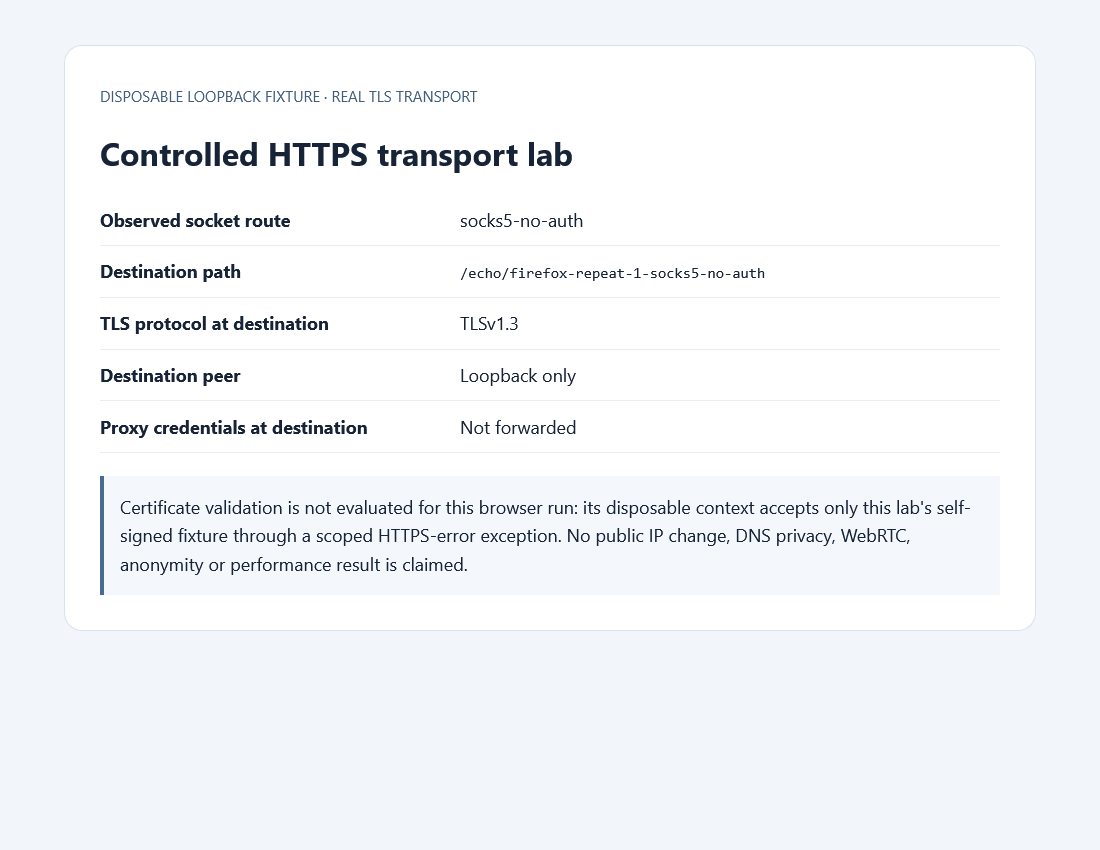
Expected observation: the visible exit changes to the assigned proxy, the browser or curl uses the intended DNS mode, HTTPS certificates validate normally, and repeated requests follow the documented session rule. A changed IP alone does not prove that every browser connection used the route.
Troubleshoot SOCKS5 by the failing boundary
| Signal | Likely cause | Next check |
|---|---|---|
| Cannot reach host | Gateway DNS, port, route, or firewall | Resolve the proxy and test its port once |
| Authentication rejected | Unsupported client method or wrong credentials | Confirm username/password versus IP authorization |
| Correct exit, wrong DNS region | Local destination resolution | Enable proxy DNS or use socks5h |
| Browser works, app fails | Application ignores browser settings | Configure that application’s client |
| TLS warning | Clock, hostname, trust chain, or inspection | Stop; never disable verification |
Use the complete proxy test sequence for stability and destination checks, and the authentication comparison when the client cannot present credentials.
Privacy and authorization limits: SOCKS5 does not make traffic anonymous by itself, encrypt all applications, or override destination rules. Use approved destinations, protect credentials, honor rate limits, and avoid treating DNS routing or a changed IP as proof of complete privacy.
After choosing local or proxy-side name resolution, use the proxy leak test to compare the DNS observation and IPv6 path with the intended SOCKS5 scope rather than relying on one changed IP.
Select a SOCKS5-capable endpoint after client testing
Confirm that the exact browser or application supports the assigned authentication and DNS mode. If a stable exclusive route matches the test, compare the requirement with current private proxy options and verify protocol availability before ordering.
Why can SOCKS5 work in cURL but fail in Chrome?
Compare the authentication methods, not only host and port. Chrome’s native SOCKS5 support does not offer the same username/password path as cURL. Confirm what the exact browser can present before selecting access. A working authenticated cURL test does not establish browser compatibility or justify putting credentials in a browser launch URL.
For the related implementation or diagnosis, review controlled browser authentication observations.